

Blog Summary
The chart of accounts is the foundation of every QBO file. Get it right and the books stay organized. Get it wrong and every transaction that follows compounds the problem.
In this guide:
- What the QuickBooks chart of accounts is and how it works
- The account types QBO uses and what belongs in each
- How to set up a COA that actually supports clean bookkeeping
- The most common chart of accounts mistakes — and what they cause downstream
- How to tell if a client's COA is creating misclassification issues
Every transaction in a QuickBooks file gets coded to an account. That account lives in the chart of accounts. And if the chart of accounts is wrong — too many accounts, duplicate accounts, catch-all accounts, wrong account types — every transaction that follows inherits the problem.
A poorly structured COA does not just make reports harder to read. It creates systematic misclassification that distorts every financial statement the file produces. Expenses end up in the wrong categories. Income gets split across accounts that should be consolidated. Tax deductions become unreliable. And the cleanup, when it finally happens, requires touching every misclassified transaction — which is often hundreds or thousands of entries.
This guide covers what a properly structured QBO chart of accounts looks like, how to build one correctly, and what goes wrong when the COA is not maintained.
Part of our complete guide: complete QuickBooks bookkeeping guide
What Is a Chart of Accounts in QuickBooks?
The chart of accounts (COA) is the master list of every account in a QuickBooks file. Every transaction that gets recorded — an income, an expense, a payment, a bill — is coded to one or more accounts in the COA.
The COA determines how transactions are organized, how they flow into reports, and whether the resulting financial statements are accurate and readable.
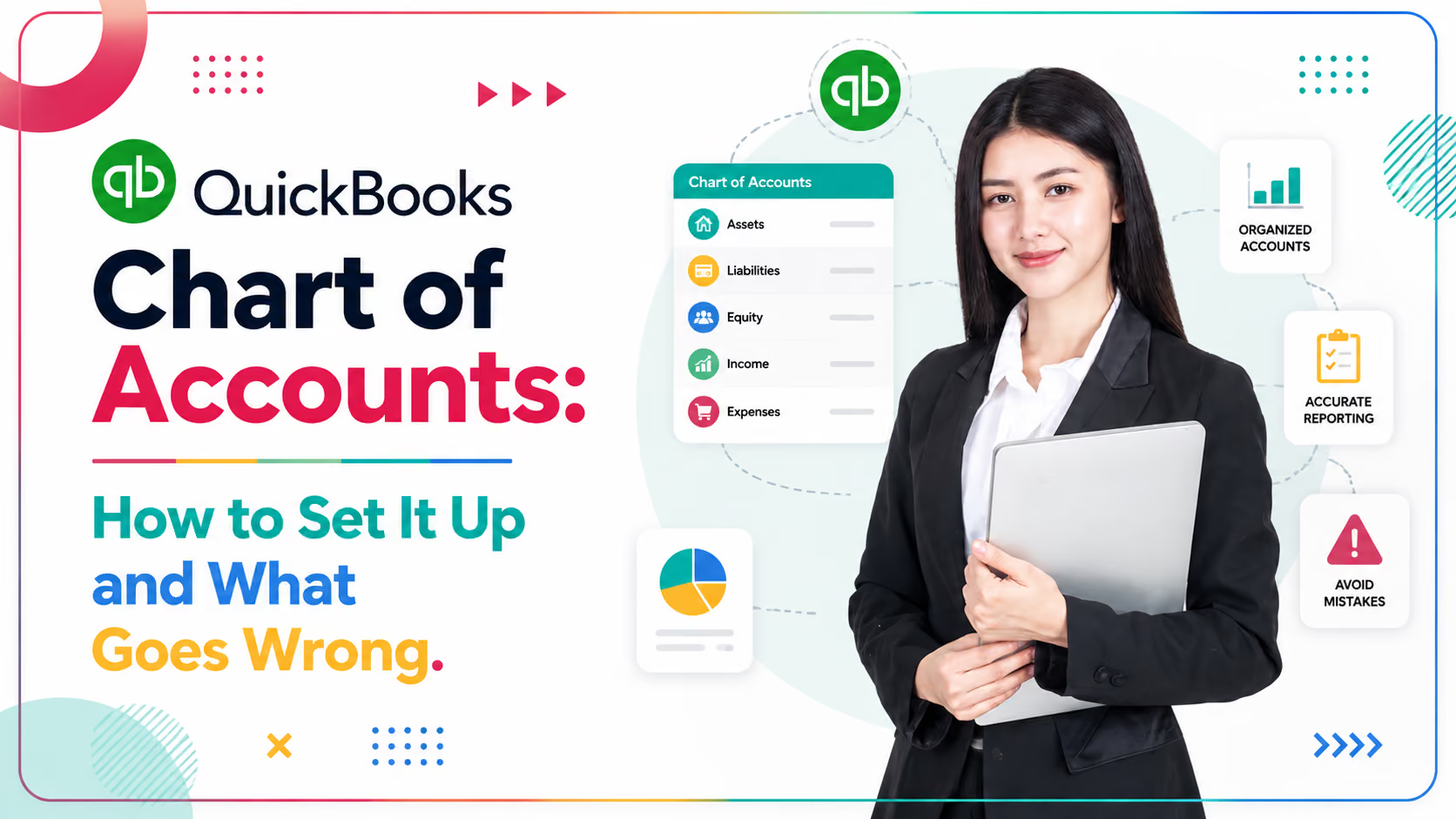
QuickBooks organizes the COA into five account categories:
Within each category, QuickBooks allows further organization through parent accounts and subaccounts. A parent account called "Payroll Expenses" might have subaccounts for "Salaries," "Payroll Taxes," and "Employee Benefits."
Why the COA Matters More Than Most Accountants Think
The COA is not just an organizational tool. It is the logic layer that makes financial reporting possible.
When the COA is clean:- Every transaction codes to a meaningful, specific account- Reports show accurate, readable breakdowns of income and expenses- Tax preparation is straightforward because deductions map cleanly to accounts- Period-over-period comparison is meaningful
When the COA is messy:- Transactions land in catch-all accounts because the right account does not exist- Duplicate accounts split the same type of expense across multiple lines- Reports show dozens of small accounts that make the P&L unreadable- Misclassifications accumulate because the structure invites them
Chart of accounts issues duplicate accounts, catch-all accounts with high balances, and wrong account type assignments — are among the most common findings when reviewing client QuickBooks files. The issue is almost always a setup problem, not a bookkeeping error. The bookkeeper made the best choice available with the structure they were given.
Who Should Set Up the Chart of Accounts?
The chart of accounts should be set up by an accountant or CPA — not the business owner, and not automatically from a QBO template without review.
Why this matters:QBO provides default chart of accounts templates when a new company is created. These templates are built for general use — they are a starting point, not a finished structure. An accountant needs to review and customize the COA for the specific business before any bookkeeping begins.
The most common source of COA problems: the business owner set up QBO themselves, chose a default template, and started entering transactions before anyone reviewed the structure. By the time an accountant gets involved, there are 18 months of transactions coded to accounts that need to be reorganized.
When Does a Chart of Accounts Need Cleaning Up?
A COA needs cleanup when any of these conditions are present:
More than 200 accounts for a simple small business. Most small businesses need 50–80 accounts total. A COA with 200+ accounts is almost always the result of new accounts being created every time a transaction did not fit anywhere obvious.
Multiple versions of the same account. "Office Supplies," "Office Supply," "Supplies - Office," "Office Supplies Expense" — four accounts that should be one. Every one of these has transactions. None of them shows the full picture.
Catch-all accounts with large balances. "Miscellaneous Expense," "Other Expense," "Ask My Accountant," "Uncategorized Expense" — these accounts exist as parking spots. A large balance in any of them means a lot of transactions that were never properly classified.
Wrong account types. Loan payments coded to expenses. Fixed asset purchases expensed in full. Personal transactions in business accounts with no clearing account. Owner draws coded to expenses.
Income accounts that do not match the business model. A service business with five separate income accounts for basically the same service — created because different team members coded things differently when the "right" account was unclear.
QuickBooks Account Types: What They Are and What Goes Where
QuickBooks Online uses specific account types within each category. Getting the account type right matters because it determines how the account flows into reports.
Asset accounts:
Liability accounts:
Income accounts:
Expense accounts:
How to Set Up a Chart of Accounts in QuickBooks Online
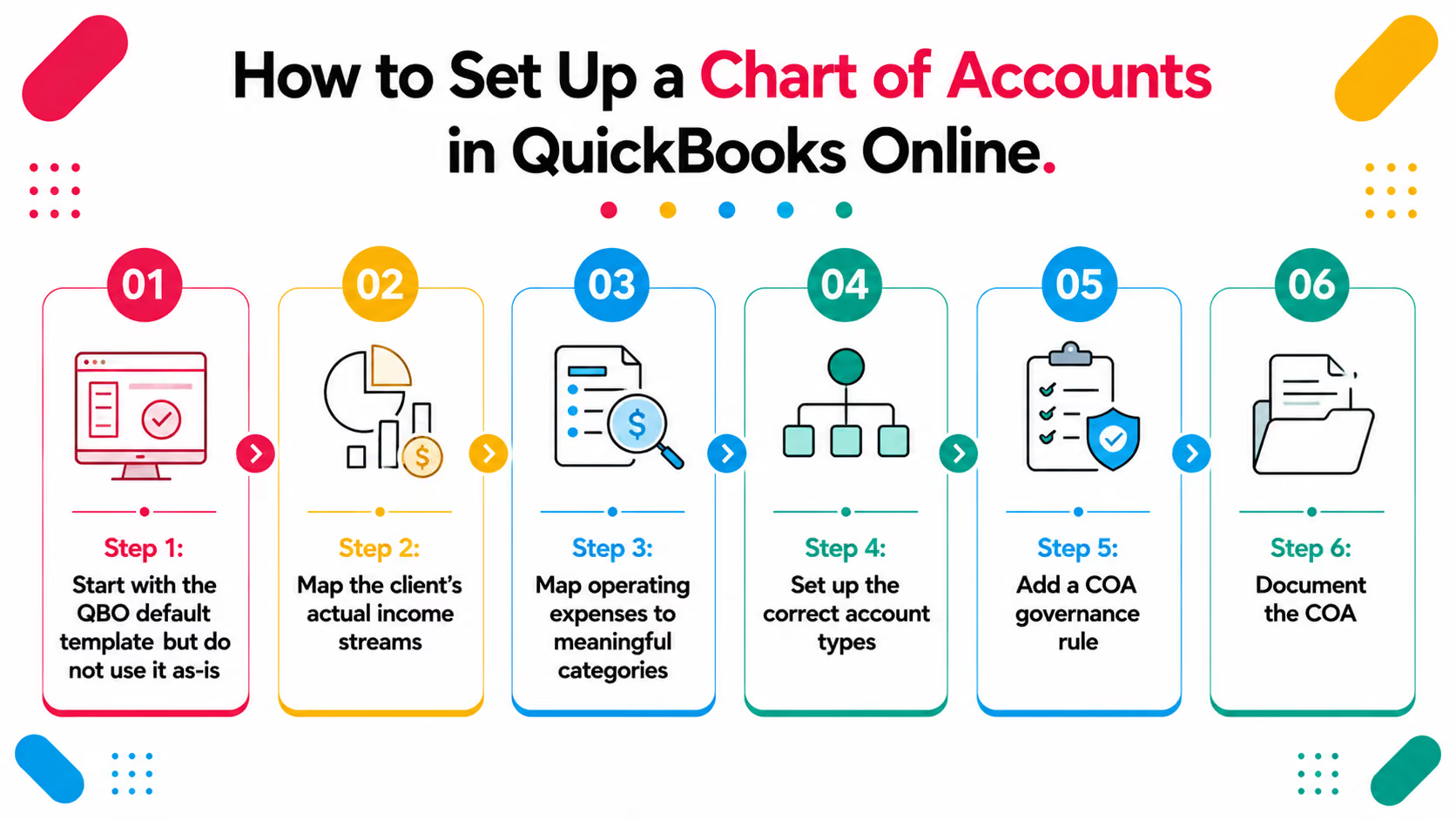
Step 1: Start with the QBO default template but do not use it as-isWhen setting up a new QBO file, choose the industry closest to the client's business. Review every default account. Delete what does not apply. Rename accounts that use unclear labels.
Step 2: Map the client's actual income streamsList every type of revenue the business generates. Create one income account per meaningful revenue category. Do not create separate accounts for the same service just because different team members called it different things.
Step 3: Map operating expenses to meaningful categoriesGroup expenses logically payroll, rent, utilities, marketing, professional services, insurance, software. Create subaccounts only where the breakdown is genuinely useful for management decisions.
Step 4: Set up the correct account typesEvery account must be assigned the correct QBO account type. A fixed asset account set up as "Other Current Asset" will flow incorrectly into the balance sheet. A loan payment account set up as "Expense" will overstate expenses and understate liabilities.
Step 5: Add a COA governance ruleNo new accounts should be created without accountant review. In QBO, you can restrict user permissions to prevent bookkeepers or clients from creating new accounts. This single change prevents most COA sprawl.
Step 6: Document the COAKeep a simple reference document that explains what each account is for and what belongs in it. When a new bookkeeper joins or a new transaction type appears, the reference document prevents guessing.
Common Chart of Accounts Mistakes (And What They Cost)
1. Too many income accountsCreating a separate income account for every service variation — "Consulting - Strategic," "Consulting - Operational," "Consulting - Fractional" makes the P&L unreadable and complicates period-over-period comparison. One or two income accounts with the service detail tracked through classes or locations is almost always better.
2. Expensing fixed asset purchasesA $15,000 equipment purchase coded to "Equipment Expense" instead of a fixed asset account skips depreciation entirely. The income statement takes a one-time hit. The balance sheet understates assets. Tax depreciation is wrong.
3. Using "Miscellaneous" as a real account"Miscellaneous Expense" should exist only as a true catch-all for minor one-off items under $500 per year maximum. A miscellaneous account with $40,000 in it is not miscellaneous. It is unclassified.
4. No separation between COGS and operating expensesFor product businesses or project-based firms, mixing direct costs (COGS) with operating expenses (rent, admin) makes gross margin impossible to calculate accurately. This is one of the most consequential COA errors for management reporting.
5. Loan payments coded to expensesWhen a loan payment hits the bank and the full amount is coded to "Loan Payment Expense," both the expense and the outstanding loan balance are wrong. The principal portion should reduce the loan liability. Only the interest portion is an expense.
How to Clean Up a Messy Chart of Accounts
Step 1: Audit the current COAExport the full account list. Identify duplicates, catch-alls, and accounts with very low transaction volumes that could be merged. Flag accounts with the wrong type.
Step 2: Merge duplicate accountsIn QBO, merging accounts automatically moves all transactions from the merged account to the surviving account. Start with the obvious duplicates — multiple versions of the same account name.
Step 3: Reclassify catch-all balancesPull the detail of every "Miscellaneous," "Other," and "Uncategorized" account. Reclassify each transaction to the correct account. This is the most time-consuming step but cannot be skipped.
Step 4: Fix account type errorsTransactions in wrong account types need to be moved this sometimes requires journal entries rather than simple recoding, depending on the account type mismatch.
Step 5: Set governance rules going forwardRestrict who can create new accounts. Document the COA. Brief the bookkeeper on what goes where.
A Scenario We See Often: How 14 Versions of "Miscellaneous" Wreck a P&L
A bookkeeping firm takes on a retail client whose QBO file had been managed by the business owner for three years. When the lead accountant pulled the chart of accounts, she found 14 different expense accounts that were essentially variations of "miscellaneous" — "Other Costs," "Misc Business Expense," "General Business Expense," "Other Operating," "Sundry," and nine more.
Combined, these 14 accounts held $127,000 in transactions over three years. None of it was actually miscellaneous. It was rent, repairs, inventory adjustments, contractor payments, and insurance — all coded to catch-all accounts because the client did not know where else to put them.
The firm spent 22 hours reviewing and recoding those transactions to rebuild a P&L the client could actually use for business decisions. The prior three years of reported profit margins were materially different once the misclassified expenses were in the right accounts.
After running a Xenett Pulse diagnostic before starting the cleanup, the firm now identifies COA issues including catch-all account balances and misclassification patterns — in the pre-onboarding review. The scope of any cleanup engagement is set based on what Pulse surfaces, not what the client reports.
How Xenett Pulse Catches Misclassification Issues Automatically
Xenett Pulse scans a QuickBooks file and flags transaction-level issues as part of its 20-point diagnostic including patterns that indicate chart of accounts problems.
What Pulse surfaces related to chart of accounts and coding:
- Transactions coded to uncategorized or catch-all accounts
- Unusual transaction amounts in accounts where they are inconsistent with prior period patterns
- Accounts with activity that does not match the account type
- Coding inconsistencies across the same vendor or transaction type
The output is a Books Health Score and a ranked list of findings sorted by severity so you know what needs attention immediately vs. what can be addressed over time.
The report is generated in under two minutes, white-labelled with your firm's branding, and ready to share with the client as part of the onboarding or proposal conversation.
Sign up free at Xenett Pulse and run a diagnostic on your next client file. COA issues that would have taken hours to find manually surface automatically in the diagnostic output.
Conclusion
The chart of accounts is not a one-time setup task. It is an ongoing structure that either supports clean bookkeeping or undermines it every single day, with every transaction that gets coded.
A well-designed COA takes about an hour to set up correctly. A poorly designed COA takes dozens of hours to clean up and every month that passes before the cleanup happens, more transactions land in the wrong place.
The firms that avoid COA problems have one thing in common: they review the chart of accounts before they touch any other part of the file. Whether it is a new client onboarding, a cleanup engagement, or a file review, the COA check comes first.
Get the foundation right and the bookkeeping stays clean. Skip the foundation review and every report the file produces is built on a structure that was never designed to support it.
Frequently Asked Questions
What is the chart of accounts in QuickBooks?
The chart of accounts is the master list of every account in a QuickBooks file. Every transaction gets coded to one or more of these accounts, which determines how it flows into financial reports. The COA is organized into five categories: assets, liabilities, equity, income, and expenses.
How many accounts should a QuickBooks chart of accounts have?
Most small businesses need between 50 and 80 accounts. A simple service business may need as few as 30–40. A COA with 200+ accounts is almost always the result of new accounts being created without structure — the same expense appearing in 10 different accounts rather than one. More accounts does not mean more detail; it usually means more confusion.
What is the difference between parent accounts and subaccounts in QuickBooks?
Parent accounts are the top-level category "Payroll Expenses," for example. Subaccounts sit underneath the parent and provide more detail "Salaries," "Payroll Taxes," "Benefits." Transactions are coded to the subaccount, which rolls up into the parent. Reports can show either the summarized (parent) view or the detailed (subaccount) view.
How do I clean up a messy chart of accounts in QuickBooks?
Start by auditing the full COA identify duplicates, catch-all accounts, and accounts with wrong types. In QBO, merge duplicate accounts (this moves all transactions automatically). Then pull the detail from catch-all accounts and reclassify each transaction. Fix any account type errors with journal entries if needed. Finally, restrict who can create new accounts to prevent the problem from recurring.
What happens if transactions are coded to the wrong account type?
Wrong account types create systematic report errors. An expense coded to an asset account understates expenses and overstates assets. A liability coded to an expense account does the opposite. These errors can materially change the balance sheet, the P&L, and the tax position and the errors compound every period until someone fixes the underlying account type.
Can I delete accounts from the QuickBooks chart of accounts?
You can delete accounts that have no transactions. Accounts with transactions can be made inactive in QBO, which removes them from the dropdown menus while preserving the transaction history. Before making an account inactive, merge it with the correct account so the transaction history appears in the right place.
How does Xenett Pulse help with chart of accounts issues?
Xenett Pulse runs a 20-point diagnostic on any QuickBooks file and flags misclassification patterns — including transactions coded to uncategorized accounts, unusual amounts in unexpected accounts, and coding inconsistencies across the same vendor or transaction type. The diagnostic surfaces these issues in under two minutes, ranked by severity, before any cleanup scope or pricing is committed.
Related guides
- Start here: QuickBooks Bookkeeping: What Clean Books Look Like
- QuickBooks General Ledger Review — How to review the general ledger and what errors to look for.
- Undeposited Funds in QuickBooks — Why undeposited funds builds up and how to clear it correctly.
- QuickBooks Accounts Receivable — How AR overstates assets and how to fix each cause.


.avif)