



Blog Summary
- A reconciliation discrepancy almost always comes from a missing transaction, a duplicate, a wrong amount, or a change to a previously reconciled transaction.
- Starting the reconciliation over rarely fixes the actual problem and wastes the matching work already completed correctly.
- The discrepancy amount itself is a clue: it often matches the exact size of the transaction causing the problem.
- QuickBooks Online has built-in tools, like the reconciliation discrepancy report, that narrow down the cause faster than manually scanning every transaction.
- Posting the difference to an adjustment account should be a last resort, not a shortcut used out of frustration.
Introduction
A reconciliation discrepancy in QuickBooks Online feels bigger than it usually is. The difference shows up at the bottom of the screen, it will not go to zero, and the instinct for a lot of people is to undo the whole reconciliation and start over.
That instinct is almost always the wrong move. Starting over does not fix the underlying cause, it just gives you a blank slate to make the same mistake again, and it throws away the matching work you already did correctly. The discrepancy has a specific, findable cause in nearly every case, and tracking it down is faster than most people expect once you know where to look.
This guide walks through exactly how to find and fix a reconciliation discrepancy in QuickBooks Online without starting the whole process over. If you have not yet gone through a full reconciliation, our guide to reconciling in QuickBooks Online covers the core process this guide assumes you already know.
Part of our complete guide: guide to reconciling in QuickBooks Online
Why Starting Over Is Usually the Wrong Move
Undoing a reconciliation and starting fresh feels like a clean reset, but it usually creates more work than it saves.
1. It Throws Away Correct Matching Work
Most of the transactions in a reconciliation with a discrepancy are matched correctly. Undoing the whole thing means re-checking every single one of them again, including the ones that were never the problem.
2. It Does Not Address the Root Cause
If the discrepancy came from a duplicate transaction or a transaction with the wrong amount, that transaction is still sitting in QuickBooks after you undo the reconciliation. Starting over just gives you another chance to run into the same wall.
3. It Can Affect Other Periods
Undoing a reconciliation can impact the beginning balance of any reconciliation done after it, particularly if other periods have already been reconciled since. This turns a single-period problem into a multi-period one.
If you are reconciling a client's file and the discrepancy is from a prior period a different bookkeeper worked on, undoing anything without understanding what changed can make it much harder to figure out what happened later.
Steps to Find the Cause of a Reconciliation Discrepancy
Work through these steps in order before considering more drastic options.
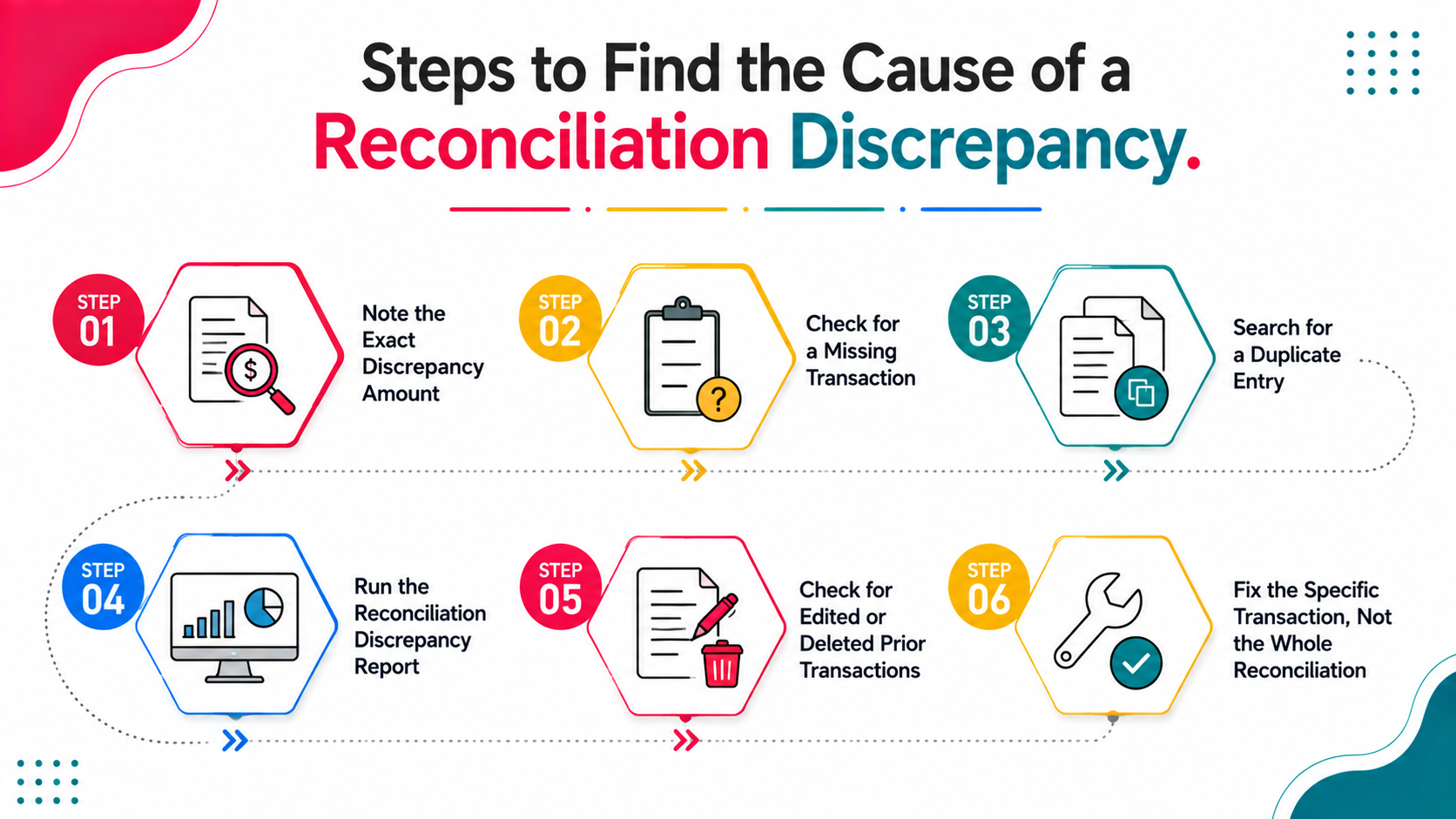
Step 1: Note the Exact Discrepancy Amount
Write down the exact dollar amount QuickBooks shows as the difference. This number is your first and best clue, as covered in the next section.
Step 2: Check for a Missing Transaction
Compare your bank statement line by line against what is checked off in QuickBooks. A transaction on the statement that does not exist in QuickBooks will create a difference equal to its exact amount.
Step 3: Search for a Duplicate Entry
Search QuickBooks for the same amount appearing twice around the same date. Duplicate entries are one of the most common causes and are often introduced by double-imported bank feed transactions.
Step 4: Run the Reconciliation Discrepancy Report
QuickBooks Online has a built-in report specifically for this. Go to Reports, search for Reconciliation Discrepancy, and run it for the account in question. This report shows transactions that were changed after being reconciled in a previous period, which is a common but easy-to-miss cause.
Step 5: Check for Edited or Deleted Prior Transactions
If the discrepancy report shows a change to a previously reconciled transaction, that is very likely your answer. Someone edited the amount, date, or account on a transaction that was already part of a finished reconciliation.
Step 6: Fix the Specific Transaction, Not the Whole Reconciliation
Once you find the cause, correct that individual transaction: add the missing one, remove the duplicate, fix the wrong amount, or restore the changed transaction to its original state. Then return to the in-progress reconciliation to confirm the difference now reads zero. If you have already undone the reconciliation and need to start that process over, see our guide to undoing a reconciliation in QuickBooks Online.
Try Xenett Pulse Free. Catch discrepancy-causing issues like duplicates and miscoded entries before you even start reconciling. Free for the first 100 firms, no credit card required.
Using the Discrepancy Amount as a Clue
The exact dollar amount of the discrepancy is more useful than it might seem at first glance.
PASTE_TABLE_1_HERE: <div class="custom-table-container"><table class="custom-table"><thead><tr><th>Discrepancy Pattern</th><th>Likely Cause</th></tr></thead><tbody><tr><td>Matches the exact amount of a specific transaction</td><td>That transaction is either missing, duplicated, or entered at the wrong amount</td></tr><tr><td>Exactly double a transaction amount</td><td>That transaction was likely entered twice</td></tr><tr><td>A small, oddly specific number</td><td>Often a data entry typo, like a transposed digit</td></tr><tr><td>Matches the total of several small transactions</td><td>Could be a batch of transactions imported incorrectly or missing entirely</td></tr><tr><td>Changes between reconciliation attempts without new entries</td><td>A previously reconciled transaction was edited or deleted</td></tr></tbody></table></div>
Before scanning every transaction manually, check whether the discrepancy amount matches anything specific you can identify. This alone often points straight to the answer.
Common Causes and How to Fix Each One
1. When the Fix Requires Reopening a Closed Period
If the Reconciliation Discrepancy report points to a transaction from several months back, you may need to briefly reopen that period to correct it. Do this carefully, and consider whether the correction affects any financial statements already delivered to a client for that period.
2. When Multiple Small Errors Are Compounding
Sometimes a discrepancy is not one clean cause but several small errors stacking together, a duplicate here, a missing transaction there. In this case, work through the reconciliation discrepancy report systematically rather than trying to find one single answer, since there may not be one.
When It's Reasonable to Post an Adjustment
QuickBooks Online allows you to post the remaining difference to an adjustment account and finish the reconciliation anyway. This should be the exception, not the default.
1. When the Amount Is Genuinely Immaterial
A discrepancy of a few cents, often caused by rounding, is reasonable to post as an adjustment rather than spending hours tracking down.
2. When You Have Made a Real, Documented Effort to Find It
If you have gone through the steps above and genuinely cannot locate the cause after reasonable effort, an adjustment lets you close the period rather than leaving it open indefinitely.
Posting adjustments repeatedly on the same account, month after month, is a sign of a deeper, unaddressed problem, not a normal part of the reconciliation process. If this becomes a pattern, it is worth a full diagnostic on the account rather than continuing to paper over it.
3. When It Should Never Be Used
A discrepancy of any meaningful size should never be posted as a quick adjustment just to finish the reconciliation faster. This hides a real problem in an adjustment account instead of fixing it, and it will resurface later, usually at a worse time.
Preventing Discrepancies From Happening in the First Place
Fixing a discrepancy is a skill worth having, but avoiding them in the first place saves far more time over the course of a year than getting efficient at troubleshooting them.
Limit Who Can Edit Transactions in Reconciled Periods
Since edited or deleted prior-period transactions are one of the most frequent causes of a new discrepancy, restricting who has permission to modify closed periods removes this risk almost entirely. QuickBooks Online allows closing books through a specific date, which prevents accidental edits to already-reconciled periods.
Review Bank Feed Rules Periodically
Bank feed rules that automatically categorize incoming transactions can occasionally create duplicates, particularly after a rule change or a bank connection reset. Reviewing active bank feed rules every few months catches rules that may be creating unintended duplicate entries before they compound into a larger discrepancy.
Reconcile on a Consistent Monthly Schedule
A discrepancy caught within days of the statement closing is far easier to trace than one discovered after several months have passed, simply because there are fewer transactions to review and the cause is more likely to be fresh in memory. Falling behind on reconciliation is one of the biggest contributors to discrepancies that take hours to resolve instead of minutes.
Document Any Unusual Transactions as They Happen
A quick note on an unusual transaction, a large one-time purchase, a refund processed differently than normal, saves significant time later if that transaction ever becomes part of a discrepancy investigation. Without this context, an unusual but legitimate transaction can look identical to an error months after the fact.
Frequently Asked Questions
How do I fix a reconciliation discrepancy in QuickBooks Online?
Identify the exact discrepancy amount, check for a missing transaction, search for duplicates, run the Reconciliation Discrepancy report to check for edited prior transactions, then correct the specific transaction causing the issue rather than restarting the whole reconciliation.
Should I undo the whole reconciliation if there's a discrepancy?
Generally no. Undoing the reconciliation discards correctly matched work and does not address the underlying cause. It is better to find and fix the specific transaction responsible. If you do need to undo one, see our guide to undoing a reconciliation in QuickBooks Online for the full process.
What is the Reconciliation Discrepancy report in QuickBooks Online?
It is a built-in report that shows transactions changed after they were already part of a completed reconciliation, which is one of the most common and hardest-to-spot causes of a new discrepancy.
Is it okay to post the difference to an adjustment account?
Only for genuinely small, immaterial amounts after a real effort to find the cause. Larger or recurring discrepancies should be investigated and fixed, not hidden in an adjustment account.
Why does my reconciliation keep showing a discrepancy every month?
A recurring discrepancy usually points to a systemic issue, like a bank feed rule creating duplicates, or a specific person editing already-reconciled transactions. This is worth diagnosing directly rather than adjusting away each time.
Conclusion
A reconciliation discrepancy is not a reason to start over. It is a signal that one specific transaction, somewhere, does not match, and QuickBooks Online gives you the tools to find it directly rather than guessing. Working through the cause methodically takes less time than most people assume, and it protects the reconciliation work you have already done correctly, rather than discarding it for the sake of a clean restart that does not actually solve anything.
Related guides
- Start here: How to Reconcile in QuickBooks Online
- What Unreconciled Accounts Really Cost — What unreconciled accounts actually cost a client and a firm.
- Client Reconciliation Problems — The reconciliation problems that wreck fixed-fee engagements.
- How to Undo a Reconciliation in QuickBooks Online — When to undo a reconciliation, and how to do it safely.
If discrepancies keep showing up across multiple accounts or multiple clients, that pattern is worth a closer look, since a recurring issue almost always traces back to a fixable process gap rather than bad luck repeating itself. Try Xenett Pulse to catch reconciliation issues like duplicates and miscoded entries before they turn into a discrepancy at all.