



Blog Summary
- Undoing a reconciliation removes the reconciled status from all transactions in a period. It does not delete transactions or change balances.
- Only undo when there is a specific error that cannot be fixed without reversing the period. For small coding errors, edit the transaction directly.
- Go to Accounting, then Reconcile, then History by account. Select the account, find the period, click Undo, make corrections, and re-reconcile using the original ending balance.
- Only the Primary Admin or Accountant user can undo a reconciliation. Standard users cannot access reconciliation history.
- Undoing one period affects all subsequent periods. When undoing multiple, work from the most recent backward.
- The most common errors: duplicates, missing transactions, wrong beginning balances, and forced adjusting entries. Forced entries compound across every period and mask the root cause.
- QuickBooks reports show balances, not reconciliation status. A file can look clean while hiding months of reconciliation gaps.
- Check account status before reconciling, not after. Xenett Pulse automates this across all accounts in under two minutes.
What Does It Mean to Undo a Reconciliation in QuickBooks Online?
Undoing a reconciliation in QuickBooks Online reverses the reconciled status of all transactions in a completed reconciliation period, returning them to unreconciled so corrections can be made.
It does not delete transactions.
It does not change balances directly.
It removes the reconciled status from every transaction in that period, which allows you to edit, delete, or add transactions before re-reconciling.
QuickBooks Online stores a reconciliation history for every account.
When you undo a reconciliation, that period is removed from the history and the transactions go back to their pre-reconciliation state.
This is useful when you need to correct a mistake made before or during the reconciliation.
It is not something to do casually: undoing a reconciliation in a period that has already been reported on can create discrepancies downstream.
Part of our complete guide: guide to reconciling in QuickBooks Online
When Should You Undo a Reconciliation?
Undo a reconciliation when there is a specific, identified error in a completed period that cannot be corrected without reversing the reconciliation.
Here are the situations where it makes sense:
- A transaction was reconciled that should not have been (duplicate, wrong account)
- A transaction was missed during reconciliation and the period needs to be reopened
- The beginning balance of the next period is incorrect because of an error in this one
- A bank statement discrepancy was forced through with an adjusting entry that needs to be removed
Here are the situations where undoing is not the right move:
- You want to recode a transaction that does not affect the reconciled balance: edit the transaction directly instead
- The error is in a period that has already been used for tax filing: consult with a CPA before reversing
- The discrepancy is small and can be corrected with an adjusting journal entry in the current period
The key question before undoing: will reversing this reconciliation create more problems than it solves?
If the period has been reported on, including tax return filed, financial statements issued, or investor reports sent, undoing and re-reconciling requires careful documentation and possibly a conversation with the client.
{Situation | Undo Reconciliation?
How to Undo a Reconciliation in QuickBooks Online: Step by Step
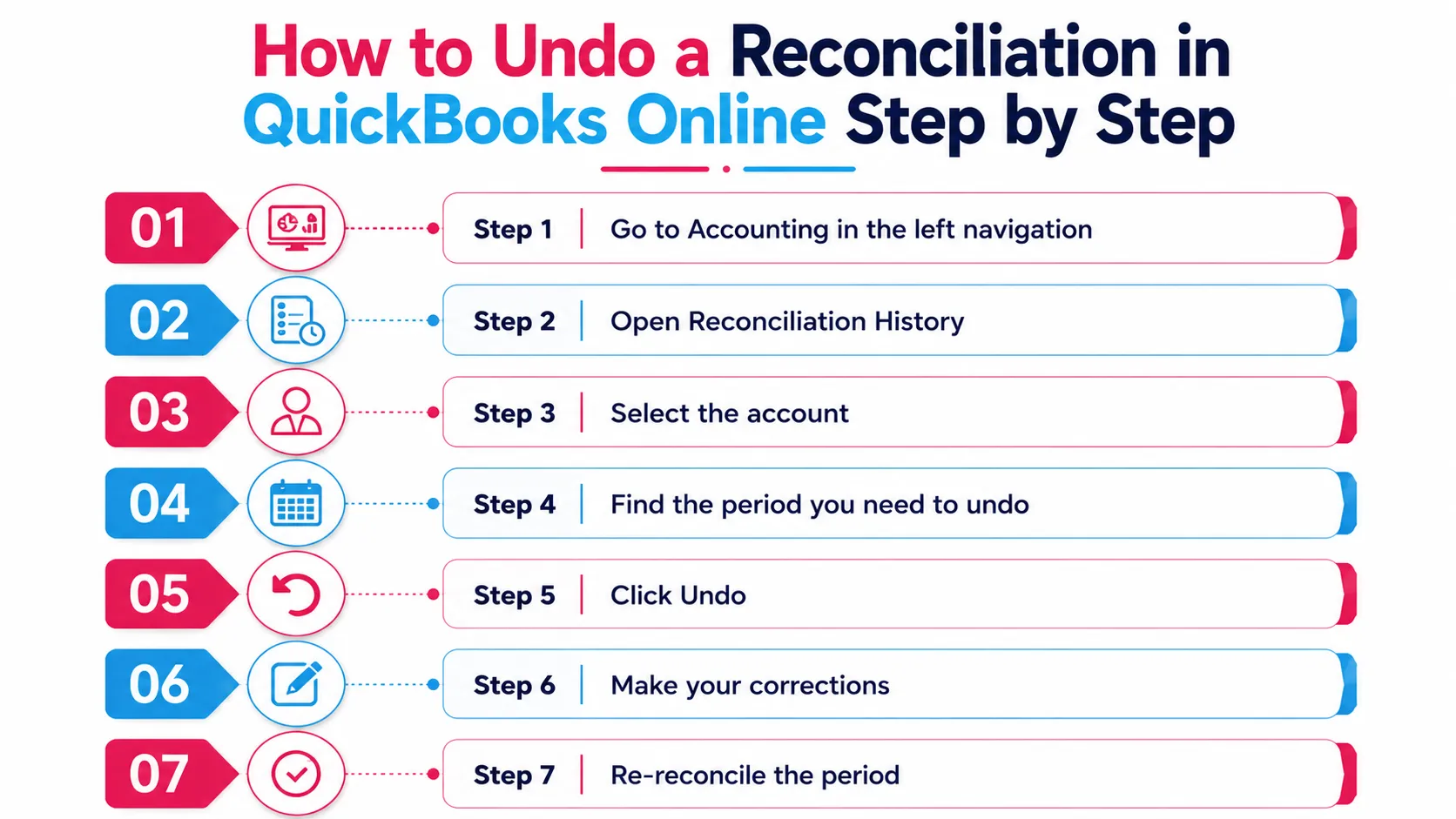
To undo a reconciliation in QuickBooks Online, go to Accounting, then Reconcile, then History by account, find the period, and select Undo.
Here is the full process:
Step 1: Go to Accounting in the left navigation
Log into QuickBooks Online.
Click Accounting in the left-hand menu.
Select Reconcile from the submenu.
Step 2: Open Reconciliation History
On the Reconcile page, click History by account in the top right corner.
This opens the reconciliation history for all accounts.
Step 3: Select the account
Use the account dropdown to select the bank or credit card account you need to undo.
The reconciliation history for that account will display, with the most recent period at the top.
Step 4: Find the period you need to undo
Locate the reconciliation period you want to reverse.
Review the statement ending date, ending balance, and reconciled date to confirm you have the right one.
Step 5: Click Undo
Click Undo next to the period.
QuickBooks will ask you to confirm.
Read the confirmation message carefully: it tells you exactly what will happen.
Click Undo again to confirm.
Step 6: Make your corrections
All transactions from that period are now unreconciled.
Make the corrections you need: delete duplicates, recode transactions, add missing entries.
Step 7: Re-reconcile the period
Once corrections are made, go back to Accounting, then Reconcile and re-reconcile the period.
Use the original bank statement ending balance.
The reconciliation should now clear cleanly.
Important note on permissions: In QuickBooks Online, only the Primary Admin or an Accountant user can undo a reconciliation. Standard users do not have access to reconciliation history. If you are working on a client file, confirm you have accountant-level access before attempting to undo.
What Happens After You Undo a Reconciliation?
After undoing a reconciliation, all transactions in that period return to unreconciled status. The beginning balance of the next period will also be affected until you re-reconcile.
This is the most important thing to understand before undoing.
Reconciliations are linked.
The ending balance of one period becomes the beginning balance of the next.
When you undo a reconciliation, the next period's beginning balance changes, which means that period may also show a discrepancy until the undone period is re-reconciled and the chain is restored.
If you undo multiple periods in sequence, work from the most recent backward, not oldest to newest.
Undoing the oldest period first while leaving more recent ones intact creates a compounding discrepancy across every period in between.
Common Reconciliation Errors and How to Fix Them
Most reconciliation errors fall into four categories: duplicate transactions, missing transactions, wrong beginning balance, and forced adjusting entries.
Here is how to identify and fix each one:
| Error Type | How It Shows Up | Fix |
|---|---|---|
| Duplicate transaction | Balance is off by the exact amount of one transaction | Delete the duplicate, re-reconcile |
| Missing transaction | Balance is off by the amount of a transaction that should be there | Add the missing transaction, re-reconcile |
| Wrong beginning balance | Every period after a certain point shows a discrepancy | Find the period where the balance first went wrong, undo from there |
| Forced adjusting entry | A journal entry was added to force the reconciliation to close | Remove the entry, find the root cause, re-reconcile |
| Bank feed disconnection | Transactions missing from a period where the feed stopped | Reconnect feed, manually add missing transactions, re-reconcile |
| Miscoded transaction | Transaction reconciled to wrong account | Recode the transaction: only undo if the recode affects the reconciled balance |
Forced adjusting entries are the most common issue in files that have been managed without a proper review process.
When a reconciliation does not close cleanly, the temptation is to add a small journal entry to force it through.
That entry masks the real error.
It compounds every period after it.
And it is exactly the kind of issue that surfaces when you run a full diagnostic on a new client file.
Why Reconciliation Errors Accumulate Silently
Reconciliation errors accumulate because standard QuickBooks reports do not show reconciliation status: they show balances. A file can report a clean balance while hiding months of reconciliation gaps underneath.
This is the core problem with relying on summary reports to assess a file.
The balance sheet balances.
The bank account shows the right number.
Everything looks fine.
But underneath, two accounts have not been reconciled in eight months.
One has a forced adjusting entry from last year that nobody has addressed.
Another was reconciled with the wrong ending balance and every period since has been carrying a discrepancy.
None of that is visible in a P&L or balance sheet.
It only becomes visible when someone checks the reconciliation status of every account, which is exactly what Xenett Pulse does automatically.
Pulse checks every account for three reconciliation statuses:
- Reconciled through period end: account is current and clean
- Stale, over 6 months old: account has fallen behind and is accumulating gaps
- Never reconciled: account has no reconciliation history at all
The output is part of a 20-point diagnostic that surfaces all reconciliation issues ranked by severity, alongside banking, AR, AP, and coding problems, in 1 minute 42 seconds.
According to data from Xenett Pulse, 68% of engagements start with unvalidated books.
Reconciliation gaps are one of the most common issues hidden inside those files.
How to Prevent Reconciliation Errors Before They Happen
Prevent reconciliation errors by running a diagnostic check on every account before closing the period, not after.
The standard workflow is: reconcile, discover a discrepancy, undo, fix, re-reconcile.
The better workflow is: check the account status before reconciling, identify any issues upfront, fix them first, then reconcile cleanly.
Here is what that looks like in practice:
Before starting a reconciliation:
- Confirm the bank feed is connected and pulling transactions up to the statement date
- Check for any duplicate transactions in the period
- Confirm no uncleared transactions are older than 30 days
- Review the beginning balance against the prior period ending balance
- Look for any journal entries that were added to close prior reconciliations
This pre-reconciliation check takes 15 to 20 minutes manually.
For firms managing multiple client files, running this check manually on every account every period is not realistic.
Xenett Pulse automates the check, connecting to the QuickBooks file and surfacing every reconciliation issue, banking gap, and anomalous transaction in under two minutes.
The output tells you exactly what is wrong before you start the reconciliation, not after you have already closed it.
A Common Situation We See
A bookkeeper takes on a new client file mid-year.
The prior bookkeeper had been forcing reconciliations through with small adjusting journal entries whenever the balance did not close cleanly.
Six months of entries.
Each one masking the error from the period before.
The new bookkeeper runs the reconciliation for the current month.
The beginning balance is off.
They undo the current period.
The period before is also off.
They undo that one too.
Three periods in, they realize the root issue started eight months ago with a bank feed disconnection that was never properly resolved.
The fix requires undoing and re-reconciling eight consecutive months.
What looked like a current-month problem was an eight-month chain of compounding errors.
Running a Pulse diagnostic on the file at onboarding would have surfaced the reconciliation gap immediately, before any current-period work began.
How Xenett Can Help
Xenett Pulse checks reconciliation status across every account in a QuickBooks file automatically.
The diagnostic identifies accounts that are reconciled through period end, accounts that are stale over six months, and accounts that have never been reconciled, all in 1 minute 42 seconds.
Critical issues are flagged instantly: unreconciled accounts, duplicate transactions, and cash discrepancies surfaced and ranked by severity.
The output is a Books Health Score from 0 to 100 with transaction-level findings for every issue.
For accounting firms onboarding new clients or reviewing existing files, running the Pulse diagnostic before starting any reconciliation work tells you exactly where the problems are, before you are already inside them.
68% of engagements start with unvalidated books.
Pulse is what puts your firm in the other 32%.
Sign up free and run your first diagnostic today.
Or download a sample report to see exactly what the reconciliation findings look like in the output.
Stop Absorbing Catch-Up Overruns
Run a 20-point Xenett Pulse diagnostic in under 2 minutes and quote from evidence, not estimation.
Sign Up FreeFrequently Asked Questions
How do I undo a reconciliation in QuickBooks Online?
Go to Accounting, then Reconcile, then History by account. Select the account, find the period, and click Undo. Confirm the action. All transactions in that period will return to unreconciled status. Make your corrections, then re-reconcile the period using the original bank statement ending balance.
Can I undo a reconciliation in QuickBooks Online without being an admin?
No. Only the Primary Admin or an Accountant user can undo a reconciliation in QuickBooks Online. Standard users do not have access to the reconciliation history or the undo function. If you are working on a client file, confirm your access level before attempting to undo.
Will undoing a reconciliation affect other periods?
Yes. The ending balance of each reconciliation period becomes the beginning balance of the next. Undoing a reconciliation changes the beginning balance of all subsequent periods until the undone period is re-reconciled. Always work from the most recent period backward, not oldest to newest, when undoing multiple periods.
What happens to transactions after I undo a reconciliation?
All transactions in the undone period return to unreconciled status. They are not deleted. Their amounts and dates do not change. Only their reconciled status is removed, which allows you to edit, delete, or add transactions before re-reconciling.
Can I undo a reconciliation for a period that was used in a tax return?
Technically yes. QuickBooks Online will allow it. But it is not advisable without careful documentation. If the period has been used for tax filing or financial reporting, consult with a CPA before reversing. Any changes made after the fact need to be documented and may require amended filings.
How do I fix a reconciliation discrepancy without undoing?
If the discrepancy is small and does not affect a reported period, you can correct it with a journal entry in the current period. If the discrepancy is due to a miscoded transaction that does not affect the reconciled balance, recode the transaction directly without undoing. Only undo the reconciliation when the error cannot be corrected any other way.
How do I know if a QuickBooks file has reconciliation problems?
Standard QuickBooks reports do not surface reconciliation status: they show balances. To identify reconciliation problems, check the reconciliation history for every account, looking for stale periods, missing periods, and forced adjusting entries. Xenett Pulse automates this check across all accounts in under two minutes, surfacing every reconciliation gap ranked by severity as part of a full 20-point diagnostic.
QuickBooks Reconciliation Undo: At a Glance
| Step | Action |
|---|---|
| 1 | Go to Accounting, Reconcile, History by account |
| 2 | Select the account from the dropdown |
| 3 | Find the period to undo |
| 4 | Click Undo and confirm |
| 5 | Make corrections: delete duplicates, recode, add missing transactions |
| 6 | Re-reconcile using the original bank statement ending balance |
| 7 | Confirm subsequent periods are not affected |
Undoing a reconciliation is a tool, not a solution. The solution is knowing what is in the file before the reconciliation starts.
Related guides
- Start here: How to Reconcile in QuickBooks Online
- Fix Reconciliation Discrepancies in QBO — How to trace and clear a reconciliation discrepancy in QBO.
- What Unreconciled Accounts Really Cost — What unreconciled accounts actually cost a client and a firm.
- Client Reconciliation Problems — The reconciliation problems that wreck fixed-fee engagements.
Run a free Xenett Pulse diagnostic on your next client file and surface every reconciliation issue before you touch the first transaction.