



Blog Summary
- Run a full diagnostic before any cleanup work.
- Fix the chart of accounts first: every transaction is coded against it.
- Clean up banking: reconnect feeds, remove duplicates, categorize uncategorized items.
- Reconcile all accounts from the oldest period forward using original bank statements.
- Fix AR: apply payments, clear stale invoices, merge duplicate customers.
- Fix AP: apply credits, clear past-due bills, merge duplicate vendors.
- Fix transaction coding: recode miscoded items, assign categories, standardize across periods.
- Run a final diagnostic to confirm all issues resolved and produce a client-ready report.
You inherit a client's QuickBooks file.
Or a client comes back after six months of neglect.
Or you are three weeks into an onboarding and realize the books are in worse shape than anyone described.
Either way, the books need work.
The question is where to start.
Start in the wrong place: reconciling before the chart of accounts is clean, or fixing coding before duplicates are removed, and you end up doing work twice.
This guide covers the full QuickBooks Online cleanup process in the right order, from file assessment through final diagnostic, so nothing gets missed and nothing gets done twice.
Part of our complete guide: complete QuickBooks cleanup guide
What Does It Mean to Clean Up QuickBooks Online?
Cleaning up QuickBooks Online means correcting errors, reconciling all accounts, removing duplicate transactions, and fixing miscoded entries so every report reflects the actual state of the business.
It is not the same as catch-up bookkeeping, though the two often happen together.
Here is the difference:
| Type | What It Fixes | Typical Trigger |
|---|---|---|
| QuickBooks Cleanup | Errors in existing entries: duplicates, miscoding, unreconciled accounts, bad data | New client onboarding, year-end review, pre-tax prep |
| Catch-Up Bookkeeping | Missing entries: transactions that were never recorded | Books abandoned for months, no bookkeeper on file |
| Ongoing Bookkeeping | Keeps current records accurate month to month | Active client with regular bookkeeping |
Most cleanup engagements involve both.
A file that has been neglected will have missing transactions and incorrect ones.
The cleanup process addresses both, but in a specific order that prevents rework.
Before You Start Assess the File First
Do not start any cleanup work before running a full diagnostic on the file. Starting without a complete picture means missing issues and doing work twice.
This is the step most firms skip.
They open the file, spot obvious problems, and start fixing.
Three hours in, they find a disconnected bank feed from nine months ago that changes the scope entirely.
According to data from Xenett Pulse, 68% of engagements start with unvalidated books.
The average scope expansion after discovery is 3x.
A pre-cleanup diagnostic prevents both problems.
Xenett Pulse connects to the QuickBooks file and runs a 20-point diagnostic in 1 minute 42 seconds, surfacing every issue across banking, AR, AP, reconciliations, transaction coding, and anomalies, ranked by severity.
The output is a Books Health Score from 0 to 100.
A low score tells you the cleanup is significant.
A high score tells you the file is in reasonable shape and the work is contained.
Either way, you know the full picture before you touch the first transaction.
Step 1 - Fix the Chart of Accounts
Fix the chart of accounts before touching any transactions. Every transaction in the file is coded against it: if the accounts are wrong, every transaction coded to them is also wrong.
This is where the cleanup starts.
Not with transactions.
Not with reconciliations.
With the account structure everything else is built on.
Here is what to do:
Remove or deactivate unused accounts
Do not delete accounts that have transaction history: QuickBooks will not allow it, and deleting historical data creates reporting gaps.
Instead, make them inactive.
They will no longer appear in dropdowns but the historical data remains intact.
Merge duplicate accounts
If the same account appears twice under different names, "Office Supplies" and "Office Supply Expense," for example, merge them.
In QuickBooks Online, you merge accounts by editing one and giving it the exact same name as the other. QuickBooks will prompt you to merge.
All transactions from both accounts consolidate under the surviving account.
Correct account types
Check that every account is assigned the correct type: asset, liability, equity, income, COGS, or expense.
A COGS item coded as an expense, or a personal expense coded as a business one, flows through to every report.
Fix the account type first.
Recode the transactions after.
Step 2 - Clean Up Banking
Clean up banking by reconnecting any disconnected feeds, removing duplicate transactions, categorizing uncategorized items, and matching all unmatched bank feed entries.
Banking issues are the most common source of hidden scope in a cleanup engagement.
Work through each bank and credit card account in the following order:
Reconnect disconnected bank feeds
Check every account for a disconnected or expired bank feed.
A disconnected feed means transactions stopped pulling automatically at some point, and those transactions are either missing from the file or were entered manually (and possibly duplicated when the feed was reconnected).
Reconnect the feed, then review the period when it was disconnected for missing or duplicate transactions.
Remove duplicate transactions
Duplicates most commonly come from two sources: manual CSV imports that were later also pulled by the bank feed, or double entries made by the prior bookkeeper.
In QuickBooks Online, review the bank feed for transactions with the same date, amount, and payee: these are the most obvious duplicates.
Exclude or delete the duplicate entry.
Do not delete both: confirm which one is the correct record first.
Categorize uncategorized transactions
Review the Uncategorized Expense and Uncategorized Income accounts.
Every transaction sitting there needs a correct account assigned.
Work through them in date order, oldest first.
Match unmatched bank feed items
Review the For Review tab in the banking section.
Match each unmatched item to an existing transaction or create a new one.
Do not leave items in For Review: they are not recorded in the books until they are matched or added.
Step 3 - Reconcile All Accounts
Reconcile every account from the oldest unreconciled period forward, using the original bank statements as the source of truth, not the QuickBooks balance.
This is the most time-consuming step in any cleanup.
Work through each account in chronological order: do not skip periods or reconcile out of sequence.
Here is the reconciliation status guide for every account you will encounter:
| Reconciliation Status | What It Means | Action Required |
|---|---|---|
| Reconciled through period end | Account is current and clean | No action: confirm and move on |
| Stale, over 6 months old | Account has fallen behind | Reconcile each missed period in order using original statements |
| Never reconciled | No reconciliation history exists | Start from the oldest available bank statement and work forward |
| Closed with adjusting entry | A prior reconciliation was forced through | Find and remove the adjusting entry, identify the root cause, re-reconcile |
| Beginning balance discrepancy | Opening balance of current period does not match prior period close | Undo the prior period, fix the error, re-reconcile in sequence |
For accounts that will not reconcile cleanly, do not force them through with an adjusting entry.
Find the root cause: a missing transaction, a duplicate, a wrong amount, and fix it.
Step 4 - Fix Accounts Receivable
Fix AR by applying unapplied payments, clearing stale invoices, and merging duplicate customer records.
AR issues inflate the reported receivables balance and create a misleading picture of what the business is actually owed.
Work through the following in order:
Apply unapplied payments
Go to the customer list and look for payments with no invoice applied.
Match each payment to the correct open invoice.
If no matching invoice exists, check with the client: the payment may need a new invoice created, or it may be a deposit that was miscoded.
Clear stale open invoices
Review invoices open for 90+ days.
For each one: confirm with the client whether it is still collectible.
If not, void it, write it off, or mark it as uncollectable based on the client's preference.
Do not leave stale invoices open indefinitely: they inflate AR and make the reports unreliable.
Merge duplicate customer records
Identify customers entered under multiple names (e.g., "ABC Corp" and "ABC Corporation").
Merge duplicate records so all transaction history consolidates under one customer profile.
Step 5 - Fix Accounts Payable
Fix AP by applying unapplied vendor credits, clearing past-due bills, and merging duplicate vendor records.
AP issues affect the accuracy of reported liabilities.
Work through the following:
Apply unapplied vendor credits
Review vendor credits that were entered but never applied against a bill.
Match each credit to the appropriate bill.
If no matching bill exists, check with the client on how the credit should be handled.
Stop Absorbing Catch-Up Overruns
Run a 20-point Xenett Pulse diagnostic in under 2 minutes and quote from evidence, not estimation.
Sign Up FreeClear past-due bills
Review bills past their due date.
For each one: confirm with the client whether it has been paid outside of QuickBooks, is still outstanding, or should be voided.
Record the appropriate action for each.
Merge duplicate vendor records
Same process as customers: identify vendors entered under multiple names and merge the records.
Step 6 - Review and Correct Transaction Coding
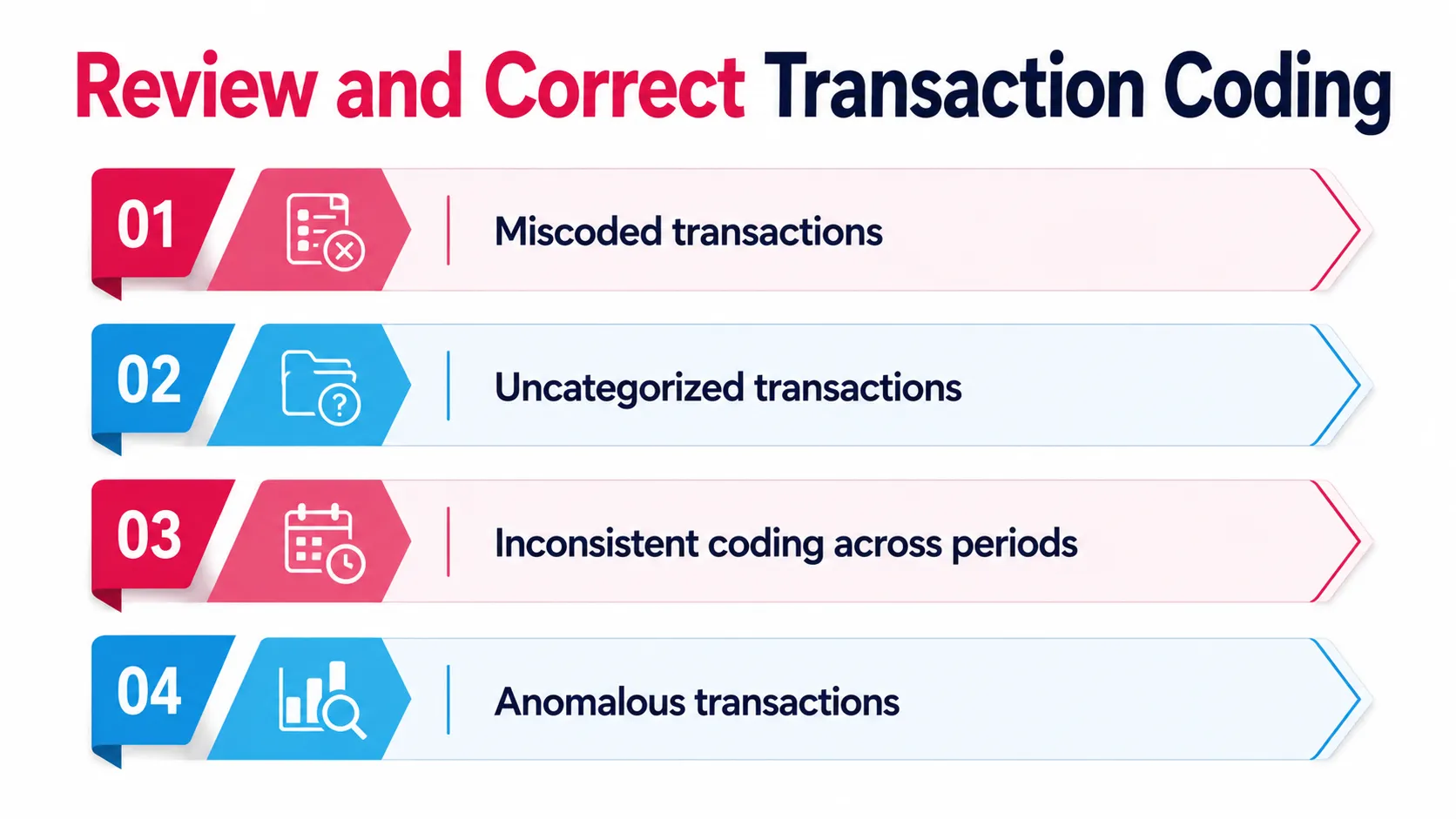
Review all transactions for correct coding: fix miscoded expenses, assign categories to uncategorized items, and check for consistency across all periods.
This is the most detail-intensive step.
Work through each expense and income category looking for:
Miscoded transactions
Transactions assigned to the wrong account: personal expenses in business accounts, COGS items coded as operating expenses, owner draws coded as wages.
Recode each one to the correct account.
Uncategorized transactions
Any transaction still sitting in Uncategorized Expense or Uncategorized Income after the banking cleanup.
Assign each to the correct account.
Inconsistent coding across periods
The same type of transaction coded differently in different months: "Advertising" in January and "Marketing Expense" in March, for example.
Standardize coding across all periods so reports are comparable month to month.
Anomalous transactions
Transactions that deviate from expected patterns: unusually large amounts, unfamiliar payees, irregular timing.
Xenett Pulse uses GPT integration to flag these automatically, defining customizable conditions for review and highlighting only the most relevant transactions so reviewers focus on critical issues without manually working through every line.
Step 7 - Run a Final Diagnostic
After completing all cleanup steps, run a second Xenett Pulse diagnostic to confirm every issue has been resolved and produce a documented record of the work done.
The final diagnostic serves two purposes.
First, it confirms the cleanup is complete.
A second Books Health Score, compared to the score from the pre-cleanup diagnostic, shows exactly how much the file improved.
Every ranked risk area from the original report should now be resolved.
Second, it produces a client-ready document.
The Pulse report is white-labelled and formatted as a PDF, ready to share directly with the client as proof of work and a baseline record for the file going forward.
The before-and-after comparison is also a natural conversation starter for ongoing bookkeeping, showing the client exactly what was wrong and what it took to fix it.
A Common Situation We See
A bookkeeper takes on a new client file and starts the cleanup without running a diagnostic first.
They spend two days reconciling the checking account and fixing coding errors.
On day three, they discover that the savings account, which had a significant balance, had never been reconciled and had a disconnected bank feed for nine months.
The bank feed gap means over 300 transactions are either missing or duplicated.
The two days of work on the checking account did not touch the savings account at all.
The scope just doubled.
After adding a Pulse diagnostic to the start of every cleanup engagement, the same bookkeeper now runs the full 20-point check before touching anything.
The diagnostic surfaces both accounts, the checking account issues and the savings account gap, in under two minutes.
The scope is set accurately from the start.
The work gets done once.
How Xenett Can Help
Xenett Pulse fits at two points in the cleanup process: before and after.
Before: Connect the QuickBooks file and run the full 20-point diagnostic in 1 minute 42 seconds.
The output is a Books Health Score, ranked risk areas across banking, AR, AP, reconciliations, and coding, and transaction-level findings that tell you exactly what is wrong and how severe each issue is.
That becomes the scope document for the engagement.
After: Re-run the diagnostic once the cleanup is complete.
The updated Books Health Score confirms every issue has been resolved.
The white-labelled PDF report is client-ready from day one, formatted for direct delivery as a documented record of the work.
The cleanup is not just about fixing what is wrong. It is about knowing everything that is wrong before you start.
Sign up free and run your first diagnostic today.
Or download a sample report to see exactly what the output looks like before you connect a file.
Frequently Asked Questions
How do I clean up QuickBooks Online?
Clean up QuickBooks Online in seven steps: run a pre-cleanup diagnostic, fix the chart of accounts, clean up banking, reconcile all accounts, fix AR, fix AP, and correct transaction coding. Run a final diagnostic to confirm everything is resolved. Always start with a diagnostic, not with transactions, so the full scope is visible before work begins.
How long does a QuickBooks cleanup take?
It depends on the file condition, backlog length, and transaction volume. A relatively clean file with 3 to 6 months of minor issues might take 5 to 15 hours. A complex file with 12+ months of reconciliation gaps, significant duplicates, and extensive miscoding can take 40 to 80+ hours. Running a Xenett Pulse diagnostic before starting gives you an accurate picture of the scope, so the time estimate is based on evidence, not guesswork.
What is the first step in cleaning up QuickBooks?
The first step is running a diagnostic to assess the full file condition. The second step, before touching any transactions, is fixing the chart of accounts. Every transaction in the file is coded against the chart of accounts. If the account structure is wrong, every downstream correction is also wrong.
How do I fix reconciliation errors in QuickBooks Online?
Identify the type of error first: duplicate transaction, missing transaction, wrong beginning balance, or forced adjusting entry. For most errors, find the root cause and fix the transaction, then re-reconcile the period. For errors that require reopening a closed period, use the undo reconciliation function.
How do I remove duplicate transactions in QuickBooks Online?
Go to the Banking section and review transactions with the same date, amount, and payee. For bank feed duplicates, exclude the duplicate entry: do not delete both. For manually entered duplicates, confirm which entry is correct and delete the other. After removing duplicates, re-reconcile any affected periods.
Should I clean up QuickBooks before year end?
Yes: year-end is one of the most common triggers for a QuickBooks cleanup. A clean file at year end means accurate tax figures, faster preparation, and fewer adjustments from the CPA. Run a diagnostic before starting the year-end cleanup to surface every issue that needs to be resolved before the books are closed.
What is a Books Health Score?
A Books Health Score is a 0 to 100 rating that reflects the overall health of a QuickBooks file across reconciliation, data quality, and accuracy. Xenett Pulse generates a Books Health Score as part of every diagnostic report. Run it before the cleanup to establish a baseline. Run it after to confirm every issue is resolved and produce a client-ready record of the work.
QuickBooks Cleanup Steps at a Glance
| Step | What It Covers | Priority |
|---|---|---|
| 0: Pre-Cleanup Diagnostic | Full 20-point file assessment, Books Health Score | First: before any work begins |
| 1: Chart of Accounts | Remove duplicates, fix account types, deactivate unused accounts | High: foundation of all coding |
| 2: Banking | Reconnect feeds, remove duplicates, categorize uncategorized items | High: most common source of hidden scope |
| 3: Reconciliations | Reconcile all accounts from oldest period forward | High: confirms banking accuracy |
| 4: Accounts Receivable | Apply payments, clear stale invoices, merge duplicates | Medium: affects reported balances |
| 5: Accounts Payable | Apply credits, clear past-due bills, merge duplicates | Medium: affects reported liabilities |
| 6: Transaction Coding | Fix miscoding, assign categories, standardize across periods | Medium to high: affects all reporting |
| 7: Final Diagnostic | Confirm all issues resolved, produce client-ready report | Last: documents the completed work |
Related guides
- Start here: QuickBooks Cleanup: The Complete Guide
- 5 Signs Your QuickBooks File Needs a Cleanup — The five warning signs a file needs cleanup before tax season.
- Hiring a QuickBooks Cleanup Service — How to choose and brief a QuickBooks cleanup provider.
- Bookkeeping Cleanup Services: What's Included — What a bookkeeping cleanup engagement actually includes.
Run a free Xenett Pulse diagnostic on your next client file and start the cleanup with the full picture in hand.