


Blog Summary
- Reconciling in QuickBooks Online means matching every transaction in your books against your actual bank or credit card statement for a given period.
- The process has five core steps: gather your statement, start the reconciliation, match transactions, investigate any difference, and finish the reconciliation.
- A reconciliation that will not balance almost always traces back to a missing transaction, a duplicate entry, or a wrong amount, not a mysterious error.
- The reconciliation report is your record of proof that the books match the bank, and it matters for both internal accuracy and client-facing credibility.
- Reconciling monthly, right after each statement closes, keeps discrepancies small and easy to track down.
Introduction
Reconciling in QuickBooks Online looks simple right up until the ending balance does not match, and then it becomes the task nobody wants to touch.
The actual process is not complicated. What trips people up is not knowing what reconciled really means, skipping a step that seems optional but is not, or hitting a discrepancy with no idea where to even start looking. Most reconciliation problems come down to one of a handful of predictable causes, and once you know what they are, tracking them down stops being guesswork.
This guide walks through exactly how to reconcile an account in QuickBooks Online from start to finish, what the reconciliation report is actually telling you, and how to fix the discrepancies that come up most often.
What Reconciliation Actually Means in QuickBooks Online
Reconciling means comparing the transactions recorded in QuickBooks against your actual bank or credit card statement for the same period, and confirming that they match.
1. It Confirms Your Books Match Reality
Every transaction that cleared your bank should also exist in QuickBooks, and vice versa. Reconciliation is the process of checking that both sides agree.
2. It Is Not the Same as Just Reviewing Transactions
Scrolling through the bank feed and confirming transactions look right is not the same as reconciling. Reconciliation specifically compares your ending balance in QuickBooks against your statement's ending balance for the period, transaction by transaction.
3. It Applies to More Than Just Checking Accounts
Bank accounts, credit cards, and loan accounts all need to be reconciled on a regular basis, not just your primary checking account.
An account that looks fine in the bank feed can still be unreconciled for months. The bank feed and reconciliation status are two separate things, and QuickBooks will not stop you from ignoring the second one.
Steps to Reconcile an Account in QuickBooks Online
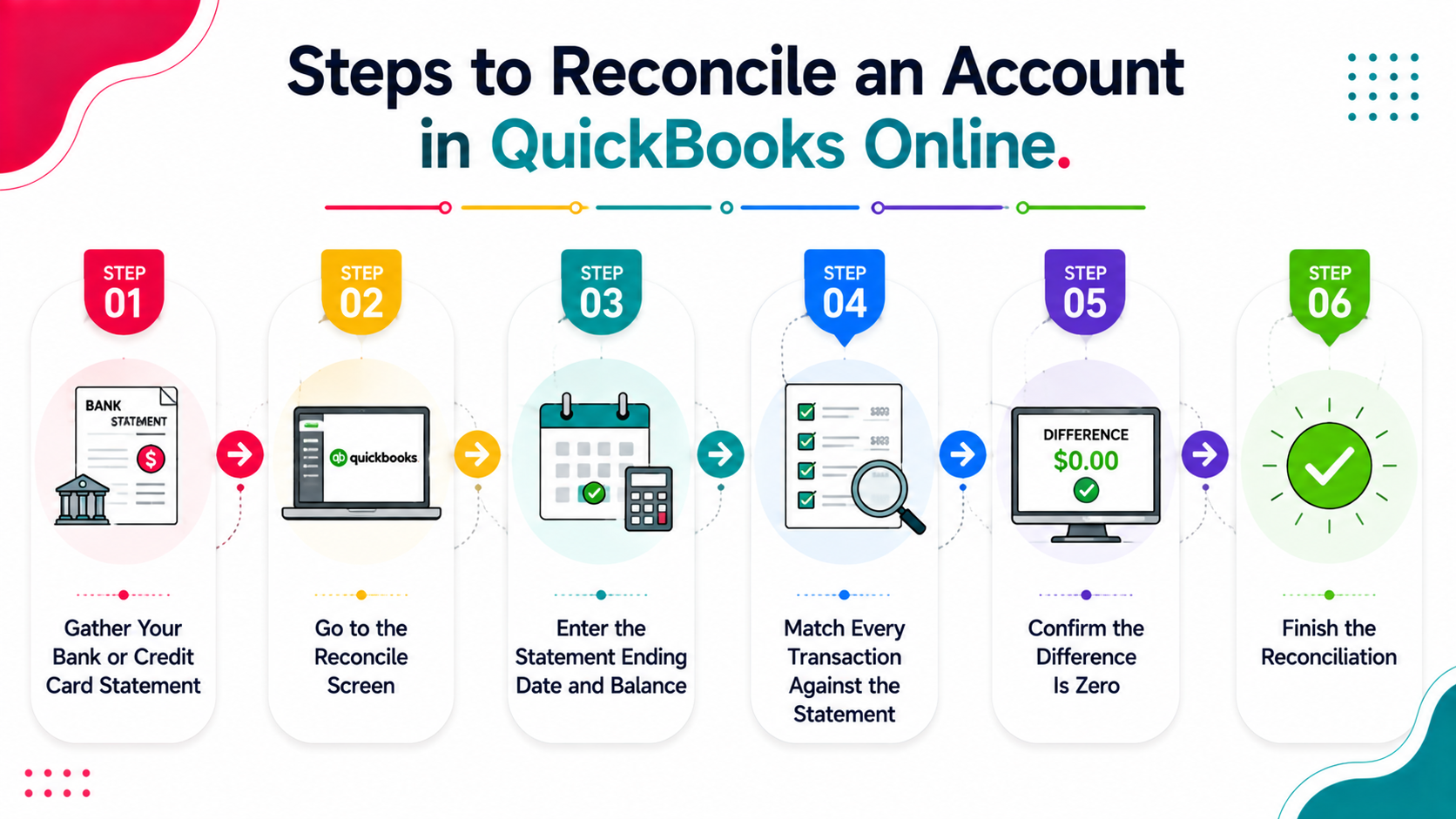
Follow these steps in order for a clean, complete reconciliation.
Step 1: Gather Your Bank or Credit Card Statement
Have the actual statement for the period you are reconciling open and ready, either as a PDF or printed copy. You will need the statement's ending date and ending balance.
Step 2: Go to the Reconcile Screen
In QuickBooks Online, navigate to the gear icon, then select Reconcile under the Tools column. Choose the account you want to reconcile from the dropdown.
Step 3: Enter the Statement Ending Date and Balance
Input the ending date and ending balance exactly as they appear on your statement. This tells QuickBooks what it is trying to match against.
Step 4: Match Every Transaction Against the Statement
Go through each transaction listed in QuickBooks and check it off against the corresponding line on your statement. Every transaction that cleared the bank during this period should get checked.
Step 5: Confirm the Difference Is Zero
At the bottom of the screen, QuickBooks shows the difference between your statement balance and your reconciled balance in QuickBooks. This needs to read zero before you can finish the reconciliation.
Step 6: Finish the Reconciliation
Once the difference is zero, select Finish Now. QuickBooks locks the reconciled transactions for that period, and the reconciliation report becomes available.
Try Xenett Pulse Free. See reconciliation status across every account at once, instead of checking one at a time. Free for the first 100 firms, no credit card required.
How to Read the Reconciliation Report
Once a reconciliation is finished, QuickBooks generates a reconciliation report. Understanding what it shows makes future reconciliations, and any review of past ones, much faster.
Report SectionWhat It ShowsWhy It MattersStatement ending balanceThe balance from your actual bank or credit card statementThe target number reconciliation is matching againstCleared transactionsEvery transaction checked off during reconciliationConfirms what QuickBooks considers matched for this periodUncleared transactionsTransactions in QuickBooks not yet matched to the statementFlags what is still outstanding, like uncashed checksBeginning balanceThe reconciled balance carried over from the prior periodShould match the ending balance of the last reconciliationDifferenceThe gap between QuickBooks and the statementShould always be zero on a finished, saved reconciliation
1. Why the Beginning Balance Matters
If the beginning balance on a new reconciliation does not match the ending balance from the last one, something was changed after the fact, like an edited or deleted transaction from a prior period. This is worth investigating immediately rather than working around it.
2. Where to Find Past Reconciliation Reports
Past reports are available under Reports, then searching for Reconciliation Reports. Pulling this list is the fastest way to check whether every account has been reconciled consistently over time. For a full workflow on checking reconciliation status across an entire file at once, see our QuickBooks diagnostic guide.
What to Do When It Won't Balance
A reconciliation that will not hit zero is frustrating, but the cause is almost always one of a few predictable issues.
1. A Transaction Is Missing
Check whether every transaction on the statement actually exists in QuickBooks. A transaction that was never entered will throw off the balance by exactly its amount.
2. A Transaction Was Entered Twice
Search for the same amount entered on the same or nearby dates. Duplicate entries are one of the most common and most overlooked causes of a reconciliation discrepancy.
3. An Amount Was Entered Incorrectly
A transaction entered for the wrong amount, even a small typo, will create a difference exactly equal to that error. Compare amounts carefully against the statement, not just the transaction descriptions.
4. A Transaction Was Edited or Deleted After a Previous Reconciliation
If someone edits or deletes a transaction that was already reconciled in a prior period, it throws off the beginning balance of every reconciliation done since. QuickBooks will warn about this, but the warning is easy to miss.
This specific issue is the reason reconciliation discrepancies sometimes appear on an account that was fine last month. The problem is not new, it is a change to something old.
5. The Statement Dates Do Not Match
Confirm the statement ending date entered in QuickBooks matches the actual statement period. A mismatched date range will pull in or exclude transactions incorrectly.
Discrepancy CauseHow to Spot ItHow to Fix ItMissing transactionStatement has an entry QuickBooks does notAdd the missing transaction, then re-checkDuplicate transactionSame amount appears twice in QuickBooksDelete or merge the duplicateWrong amount enteredTransaction exists but amount does not match statementEdit the transaction to the correct amountEdited or deleted past transactionBeginning balance does not match prior reconciliationLocate the changed transaction, correct or restore itWrong statement datesReconciliation period does not match actual statementRe-enter the correct statement ending date
If a discrepancy is small and cannot be traced after a reasonable effort, QuickBooks does allow posting the difference to an adjustment account, but this should be a last resort, not a default habit. Repeated unexplained adjustments usually mean a deeper reconciliation issue that a quick fix will not solve. Our guide on what unreconciled accounts really cost covers what happens when these small gaps get ignored over time instead of investigated.
How Often You Should Reconcile
Reconciling on a consistent schedule keeps discrepancies small and easy to trace, since you are only ever looking back one statement period instead of several months.
Frequency Best ForRisk of Waiting LongerMonthlyMost businesses, right after each statement closesLow, discrepancies are caught and fixed quicklyQuarterlyVery low-transaction-volume accountsModerate, harder to trace issues back to a specific transactionAnnually or neverNot recommended for any active accountHigh, errors compound and become expensive to unwind
Monthly reconciliation, done within a few days of each statement closing, is the standard that keeps the process quick and the books reliable.
Common Mistakes People Make When Reconciling
Beyond the technical steps, a few habits and misunderstandings tend to cause more reconciliation problems than the process itself.
Reconciling From the Bank Feed Instead of the Actual Statement
The bank feed shows transactions as they are imported, but it can occasionally miss items, include pending transactions that later change, or reflect timing differences from the actual statement. Reconciling directly against the downloaded or printed statement, rather than trusting the feed alone, catches these discrepancies before they become a problem.
Rushing Through the Matching Step
Checking off transactions quickly without actually comparing amounts and dates against the statement defeats the purpose of the process. A transaction that looks approximately right is not the same as one that has actually been verified, and rushing through this step is one of the most common ways an error slips past unnoticed.
Ignoring Small Differences Instead of Investigating Them
A five-dollar difference feels trivial in isolation, but treating small discrepancies as not worth investigating trains the habit of skipping real problems. Small, unexplained differences are often the visible edge of a larger issue, like a partial duplicate or a rounding error repeated across several transactions.
Not Reconciling Every Account Every Month
It is easy to fall into a pattern of reconciling the primary checking account consistently while letting secondary accounts slip. Every account connected to the business, not just the one used daily, needs the same monthly attention.
Waiting Too Long Between Reconciliations
Falling behind by even two or three months makes any eventual discrepancy significantly harder to trace, since there are more transactions to review and less clear memory of what happened when. Staying current, even when it feels like a minor task compared to other priorities, pays off directly if something ever does not match.
Frequently Asked Questions
How do I reconcile an account in QuickBooks Online?
Go to the gear icon, select Reconcile, choose the account, enter the statement ending date and balance, check off each transaction against the statement, and finish once the difference reads zero.
What does it mean when QuickBooks reconciliation won't balance?
It means the total of your checked transactions does not match the statement ending balance. This is usually caused by a missing transaction, a duplicate entry, a wrong amount, or a transaction that was edited after a prior reconciliation.
How do I do a bank reconciliation in QuickBooks?
The process is the same for both QuickBooks Online and Desktop in principle: match every transaction in QuickBooks against your bank statement for the period, and confirm the ending balances agree before finishing the reconciliation.
Where do I find the reconciliation report in QuickBooks Online?
Go to Reports and search for Reconciliation Reports. This shows a list of all completed reconciliations by account and period.
What causes reconciliation discrepancies in QuickBooks Online?
The most common causes are a missing transaction, a duplicate entry, an incorrect amount, a transaction that was edited or deleted after being previously reconciled, or a mismatched statement date range.
Conclusion
Reconciling in QuickBooks Online is a straightforward process once you know the steps, and most of the frustration people run into comes down to a small, findable cause: a missing transaction, a duplicate, or a number that does not quite match. Working through the process methodically, and reconciling on a consistent monthly schedule, keeps it from ever becoming the dreaded task it can turn into when it is put off for months.
The complete QuickBooks reconciliation series
Every guide below goes deeper on one part of the process covered above.
- How to Undo a Reconciliation in QuickBooks Online - When to undo a reconciliation, and how to do it safely.
- Fix Reconciliation Discrepancies in QBO - How to trace and clear a reconciliation discrepancy in QBO.
- What Unreconciled Accounts Really Cost - What unreconciled accounts actually cost a client and a firm.
- Client Reconciliation Problems -The reconciliation problems that wreck fixed-fee engagements.
Other guides for accounting firms
- QuickBooks Cleanup: The Complete Guide
- How to Price Bookkeeping Services
- Accounting Client Onboarding Checklist
- What Is Outsourced Bookkeeping?
- QuickBooks Bookkeeping: What Clean Books Look Like
If you are reconciling client files as part of a bookkeeping engagement, checking reconciliation status across every account at once, rather than one at a time, saves real time every month. Try Xenett Pulse to see the reconciliation status of an entire file in under two minutes.
.avif)